Every time someone shops for a new laptop, they run into the same wall of jargon: processor speed, gigabytes of RAM, terabytes of storage. The spec sheet reads like a foreign language, and most buyers end up choosing based on price or brand name alone, hoping for the best. That gap in understanding costs real money. It is easy to overpay for storage you will never fill while underpaying for the RAM that would have made the machine feel fast on day one.
This guide breaks down the three components that decide how a computer actually feels to use: the CPU, the RAM, and the storage drive. By the end, you will be able to look at any spec sheet and know exactly what you are paying for and why.
The CPU Is the Computer’s Brain
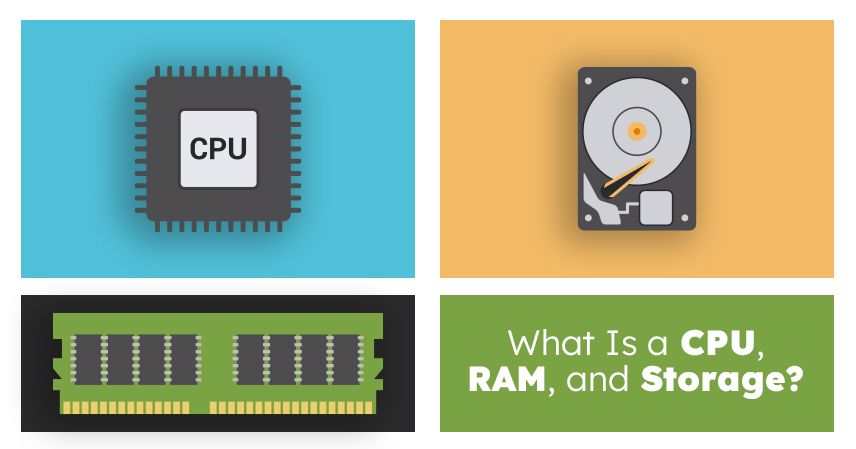
The CPU, or central processing unit, is the component that does the actual thinking. Every calculation, every instruction, every decision your computer makes passes through the CPU first. Picture it as a chef working a kitchen line: the chef reads each order, decides what to do, and carries out the cooking. A faster kitchen with more hands, meaning more processor cores, can handle more orders at once. That is why modern CPUs are described by two numbers: clock speed, which is how fast each instruction gets processed, and core count, which is how many instructions can run at the same time.
A quad-core processor running at 3.5 GHz will typically juggle more background tasks, browser tabs, a spreadsheet, and a video call, without slowing down, compared to an older dual-core chip running at a similar speed. None of that processing power matters, though, if the CPU does not have enough short-term memory to hold what it is currently working on. That is where RAM comes in.
RAM Is Short-Term Working Memory
Random access memory, or RAM, is where your computer stores information it needs right now, not permanently, just for as long as you are using it. Staying with the kitchen, RAM is the counter space: the chef needs room to lay out ingredients, cutting boards, and half-finished dishes while working. A small counter means constant clean-up between tasks. A big counter means several dishes can sit out at once without anyone getting in the way. This is why a computer with 8GB of RAM starts to lag the moment you open a dozen browser tabs, a spreadsheet, and a video call together.
There is not enough space to keep everything on the counter, so the system starts swapping data in and out, and everything slows down. Behind the scenes, the operating system decides what stays loaded and what gets set aside, a role covered in more depth in our guide on operating systems. Unlike storage, RAM is temporary. Everything on it disappears the moment the computer shuts down or loses power, which is exactly why a separate, permanent place to keep files and programs is necessary.
Storage Is Where Everything Lives Long Term
Storage is usually the first thing people think about when buying a computer, and it is the easiest to understand because it maps to something familiar: a filing cabinet or a pantry. Whatever you save, documents, photos, installed programs, even the operating system itself, lives on the storage drive and stays there whether the computer is on or off. The type of drive you have affects everyday speed more than almost any other spec on the page.
- Hard disk drive (HDD): a mechanical drive with spinning platters. Large capacity for the price, but noticeably slower to read and write data.
- Solid-state drive (SSD): no moving parts, so files load and the system boots noticeably faster than on an HDD.
- NVMe SSD: the fastest consumer option, connecting directly to the motherboard for even quicker data transfer.
- Cloud storage: files kept on remote servers and accessed over the internet rather than on the device itself, worth understanding on its own.
- External drives: portable HDDs or SSDs used for backups or extra space without opening the computer.
If you only make one upgrade to an aging laptop, replacing a spinning HDD with an SSD usually delivers a bigger everyday speed boost than buying a faster CPU. It is also worth separating two ideas that get confused constantly: storage capacity and storage speed. A 1 TB HDD has more room than a 256GB SSD, but the SSD will feel dramatically faster in daily use, because capacity and speed are two different specs measuring two different things.
How the Three Work Together
Return to the kitchen one more time. The CPU is the chef, RAM is the counter space, and storage is the pantry and fridge combined. Say you open a large photo-editing project. The CPU processes each instruction as you edit. RAM holds the active project, so every adjustment responds instantly, without the computer needing to fetch it from storage each time. Storage holds the saved file itself, before you open it and after you close it. If any one piece is undersized, the whole system feels it: a powerful CPU paired with too little RAM will still stutter under multitasking, and even a fast CPU and generous RAM will feel sluggish if the storage drive is an old, slow HDD holding everything back.
Why This Matters When You’re Buying a Computer
Once you understand what each component actually does, spec sheets stop being intimidating and start being a checklist. What you prioritize should depend on how you plan to use the machine.
- Everyday browsing and office work: 8 to 16GB of RAM, any modern mid-range CPU, and an SSD are more than enough.
- Gaming or creative work: 16 to 32GB of RAM, a multi-core CPU, and an NVMe SSD handle large files and demanding software comfortably.
- Programming and development: a fast CPU with 16GB or more of RAM is a reasonable baseline, and it helps to pair the hardware decision with a structured path for building those skills once the machine is ready.
- Heavy multitasking or video editing: prioritize RAM and CPU core count first, then storage speed, since these workloads lean hardest on all three at once.
Common Misconceptions
Two beliefs cause more bad purchases than anything else. The first is that more RAM is always better. Past a certain point tied to how you actually use the computer, additional RAM sits idle and does nothing for performance, so paying extra for 64GB when you browse and write documents is money spent on headroom you will never use. The second is that storage capacity equals speed. A larger drive is not automatically a faster one. An HDD with twice the storage of an SSD will still lose in every real-world speed test, because the drive type matters more than the number of gigabytes printed on the box.
Quick Diagnostic: What’s Slowing You Down?
If a computer feels slow, the symptoms usually point to which component is the bottleneck.
- Apps take a long time to open, and fans spin up loudly during multitasking: likely a CPU or RAM limitation.
- Startup and file loading are slow, but multitasking itself feels fine: likely a storage speed issue, often solved by upgrading to an SSD.
- Frequent low disk space warnings: a storage capacity issue rather than a speed or processing problem.
How This Connects to Other Tech Basics
Once hardware fundamentals click, other tech concepts get easier to follow too. Cloud computing, for instance, is essentially borrowing someone else’s CPU, RAM, and storage over the internet instead of relying entirely on your own machine. APIs sit a layer above all of this, acting as the agreed-upon rules for how programs talk to each other, but every one of those exchanges still ultimately runs on physical hardware like the components covered here. And once you understand what lives on your storage drive, from documents to saved passwords, it becomes much easier to appreciate why protecting whatever you keep on that storage drive with basic security habits matters as much as the hardware itself.
Understanding your CPU, RAM, and storage will not make you a hardware engineer, but it will make you a far more confident buyer and a more capable troubleshooter. The next time a spec sheet lists a processor, a memory size, and a drive type, you will know exactly what each one is doing and which one actually needs your attention.