“Router,” “modem,” and “Wi-Fi” get used like they’re the same thing, but each one does a distinct job in getting your devices online. Mixing them up isn’t just a vocabulary slip; it is the reason so many people troubleshoot the wrong device when the internet goes down or buy the wrong equipment when they’re trying to fix a dead zone in the house. This guide breaks each term down in plain language, shows how the three pieces connect, and points you toward the setup and security decisions that actually depend on understanding the difference.
The modem: your bridge to the internet
Your internet service provider (cable, fiber, or DSL) sends data to your home over a physical line that speaks a language your devices don’t understand. The modem’s only job is translation. It takes the signal coming from your provider and converts it into a format your home network can use, then does the reverse for anything you send back out. Without a modem, none of your devices could reach the internet at all, no matter how strong the rest of your home network setup is.
A modem on its own connects exactly one device, plugged in directly with an Ethernet cable. It doesn’t create a network, assign addresses to multiple devices, or broadcast anything wirelessly. That’s the router’s job, and it’s where most of the confusion starts, because many providers now supply a single box that quietly does both.
The router: traffic control for your home network
Once the modem has translated the signal, the router takes over. It creates your home network, assigns a private address to every device that joins, and directs data to the correct destination, so your laptop’s video call doesn’t get routed to your smart speaker instead. The router is also your household’s first line of defense: it runs a basic firewall, manages the Wi-Fi network name and password, and decides which devices are allowed to talk to which.
This is also where security choices matter most. A weak router password is an open door, and pairing it with stronger account-level protections like two-factor authentication closes gaps a router alone can’t. Changing the default administrator password on your router, not just the Wi-Fi password, is one of the most overlooked home network fixes.
Wi-Fi: the wireless language, not a device
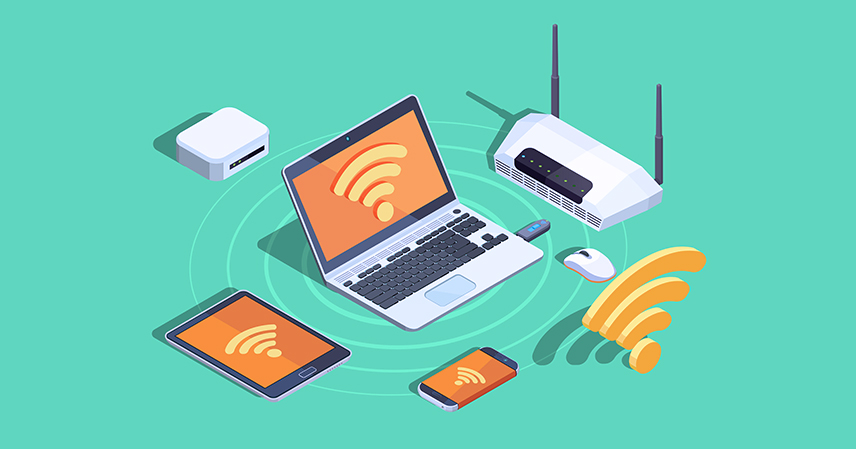
Here’s the part that trips people up most: Wi-Fi isn’t a box you can point to. It’s a wireless communication standard, a set of radio frequency rules that lets your devices talk to your router without a cable. When people say “the Wi-Fi is down,” they usually mean the router, or the connection behind it, is having a problem. Wi-Fi itself is just the language being spoken over the air.
Wi-Fi typically broadcasts on two or three frequency bands: 2.4GHz, which travels further through walls but moves slower, and 5GHz, and increasingly 6GHz, which are faster but have shorter range. Every device that connects wirelessly needs a network adapter capable of speaking this language, and your device’s operating system is what manages that connection behind the scenes, deciding which network to join, handling the password prompt, and reconnecting automatically when you come back into range.
How the three work together
Put simply, the pieces work in sequence, each handing off to the next:
- Internet service arrives at your home from your provider’s network
- The modem translates that signal into a format your equipment can use
- The router receives the translated signal and creates your home network
- The router broadcasts Wi-Fi so devices can join wirelessly, or it connects them directly by Ethernet cable
- Your devices join the network and start sending and receiving data
Understanding this order is the fastest way to troubleshoot. If the signal never makes it past the first step, no router setting will fix it.
Common setups you will encounter
- Combo gateway: a single device that acts as a modem and router together, common with many internet providers
- Separate modem and router: two devices connected by Ethernet, offering more control over router settings and easier upgrades
- Mesh Wi-Fi system: multiple router-like nodes placed around the house that share one network name and hand devices off between them as you move
- Wi-Fi extender or access point: an add-on device that rebroadcasts an existing signal to cover a dead zone, without creating a separate network
Quick troubleshooting pointers
- No internet on any device, wired or wireless: check the modem first. Look for its status lights and confirm your provider isn’t reporting an outage
- Wired devices work, but Wi-Fi doesn’t: the issue is almost always the router or its wireless radio, not the modem
- Weak signal in specific rooms: a mesh system or a well-placed extender solves range problems a single router can’t
- Restart in order: power down the modem, wait about 30 seconds, then the router, then reconnect your devices. Restarting in the wrong order often skips the fix
Why the distinction matters beyond troubleshooting
Once you understand this architecture, other tech decisions get easier. Streaming, video calls, and syncing files to cloud storage all depend on a stable path from your devices through the router and modem to the internet, so a slow connection during a big upload is often a router placement issue, not a cloud computing problem. Knowing which layer to check first saves time and often money, since it stops you from buying new equipment to fix a problem that isn’t hardware at all.
Router, modem, and Wi-Fi aren’t interchangeable words for “the internet box.” There are three distinct layers that only work well when each one is doing its own job. The next time your connection acts up, or you’re planning an upgrade, you’ll know exactly where to look first. If you’re building this kind of foundational tech knowledge one concept at a time, our tech skill roadmap lays out a logical order for what to learn next.