Every time you open a browser, it starts working in the background before you’ve even typed a search. It saves pieces of the pages you visit, remembers who you are on certain sites, and keeps a running log of where you’ve been. Most people only think about this when something breaks, a page won’t load right, a login loop won’t stop, or a device suddenly feels slower than it used to. The fix is almost always the same: clear the cache, clear the cookies, or clear the history. But those three things are not interchangeable, and clearing the wrong one for the wrong reason can cost you more than it fixes.
What Is Cache, and Why Does Your Browser Keep It?
Cache is a temporary storage area where your browser keeps copies of files it has already downloaded, such as images, stylesheets, scripts, and other assets that make up a webpage. The idea is simple: instead of re-downloading the same logo or layout file every time you revisit a site, the browser pulls the cached copy from your device, which is faster and uses less data. This is why a site loads almost instantly the second time you visit it, but more slowly the first time or after an update changes its files.
Cache files live in your device’s storage, the same general space your operating system uses to manage every other program and file on your machine. If you’re unfamiliar with how that storage and file management works at a more basic level, it’s worth understanding what an operating system actually does before troubleshooting storage-related slowdowns.
What Are Cookies, and What Do They Actually Track?
Cookies are small text files that websites store in your browser to remember information about you between visits. Unlike cache, which is about speed, cookies are about identity and state; they let a site know you’re still logged in, remember what’s in your shopping cart, and keep your language and display preferences from one visit to the next.
There are two useful distinctions worth knowing:
- Session cookies vs. persistent cookies: Session cookies exist only while your browser tab is open and disappear once you close it; persistent cookies are set to remain for a defined period, sometimes days, sometimes years.
- First-party vs. third-party cookies: First-party cookies come from the site you’re actually visiting; third-party cookies are placed by outside services embedded on that page, often advertisers or analytics tools tracking you across multiple sites.
Because cookies are frequently what keeps you signed into an account, they carry a security dimension too. If you clear cookies regularly, you’ll be logging back into accounts more often, which makes it worth pairing that habit with stronger login protection, such as setting up two-factor authentication so a fresh login isn’t a weak point.
What Is Browsing History, and How Is It Different From Cache and Cookies?
Browsing history is the most straightforward of the three: it’s a simple, chronological list of the URLs you’ve visited and when. Unlike cache and cookies, history doesn’t power anything on the sites you visit; it exists purely for your own reference, so you can revisit a page you forgot to bookmark or see what you looked at last week.
History is also separate from your saved passwords, bookmarks, and autofill data, which many browsers sync to your account and store elsewhere, often through a connected cloud storage service rather than locally on the device. That distinction matters: clearing your history does not delete your saved passwords or bookmarks, and clearing cache or cookies doesn’t either. Each of the three lives in its own space and gets cleared independently unless you select all of them at once.
Why These Files Build Up Over Time
None of these categories are cleared automatically in most default browser settings, so they accumulate. Cache grows every time you visit a new site or a site updates its design. Cookies pile up from every service you’ve logged into, every newsletter pop-up you’ve dismissed, and every ad network embedded on pages you’ve never directly visited. History simply grows with every page load. On an older device or one with limited storage, this accumulation can genuinely slow things down, and on any device, it creates a growing trail of data about where you’ve been and who you are to the sites tracking you.
When You Should Clear Each One
Not every situation calls for clearing everything. Matching the fix to the actual problem saves you from logging out of accounts you didn’t need to touch.
- A site is broken or behaving strangely: Outdated layout, missing images, a form that won’t submit. Clear the cache for that specific site first.
- You’re stuck in a login loop or a site won’t remember your session: Clear cookies for that site rather than your entire browser.
- Your device is running low on storage: Clearing cache reclaims space quickly; note that this is not the same as removing files you actually want to keep, which should live in a proper backup rather than browser storage. If you haven’t set one up, a basic computer backup routine is worth doing before you start deleting anything.
- You’re using a shared or public computer: Clear all three: cache, cookies, and history, so the next person can’t see where you went or stay logged into anything you accessed.
- You’re handing off or reselling a device: Clear history and cookies as a baseline privacy step, in addition to a full account sign-out.
How to Clear Cache, Cookies, and History
The exact menu wording varies slightly by browser, but the process is nearly identical across Chrome, Firefox, Safari, and Edge:
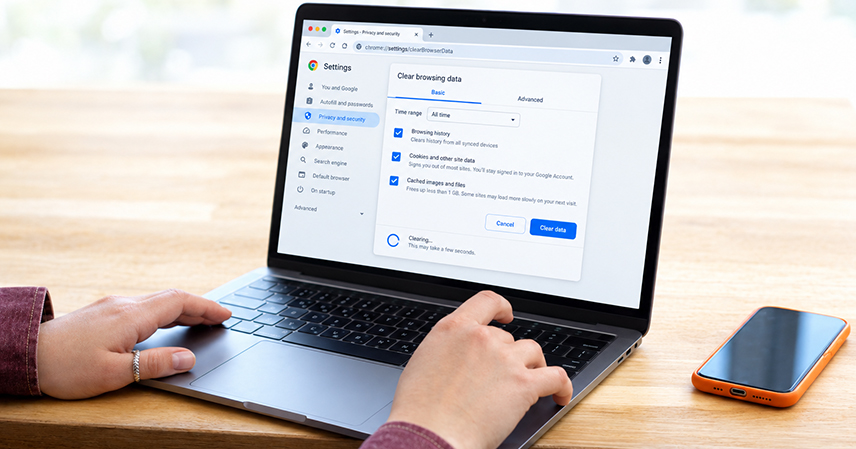
- Open your browser’s settings menu and look for “Privacy,” “Privacy and security,” or “Clear browsing data.”
- Select “Clear browsing data” (or the equivalent option for your browser).
- Choose a time range; options usually include the last hour, last 24 hours, last 7 days, or all time.
- Check the specific boxes you want: cached images and files, cookies and site data, and browsing history are usually listed separately.
- Confirm the action, then restart the browser if a site still isn’t behaving correctly afterward.
Most browsers also let you clear data for a single site rather than everything at once, which is the better option when only one site is misbehaving.
What You Lose When You Clear Them
Clearing browser data always comes with a trade-off. You’ll be logged out of most sites and need to sign back in. Pages you visit right after clearing cache will load a little slower than usual, since the browser has to re-download everything it previously had stored. Saved preferences tied to cookies, like dismissed pop-ups or remembered filters, will reset. None of this affects files stored on your device or in the cloud, but it’s a reminder that browser data isn’t a substitute for an actual backup. If something matters, it should already be saved somewhere durable rather than relying on your browser to hold onto it indefinitely.
Best Practices Going Forward
- Clear cache and cookies every few months as routine maintenance, rather than waiting until something breaks.
- Use private or incognito browsing when you don’t want a session tracked or saved at all.
- Adjust your browser’s cookie settings to block third-party trackers by default while still allowing first-party cookies for sites you trust.
- Turn on two-factor authentication on accounts you log into often, so a routine cookie clear-out doesn’t turn into a weak point in your account security.
- Keep your browser updated, since browser updates frequently include security patches related to how cache and cookies are handled.
Cache, cookies, and history aren’t a mess to be avoided; they are the browser doing its job, storing exactly what it needs to make your experience faster and more personal. Understanding what each one actually does makes it much easier to know when clearing them will genuinely fix a problem, and when it will just cost you a few extra logins for nothing.