
Building a website from scratch sounds more complicated than it is. The core technologies behind every webpage (HTML and CSS) are among the most beginner-accessible languages in software development, and the basic principles can be learned and applied within a single afternoon. What most introductory guides get wrong is trying to teach everything at once. This tutorial takes the opposite approach: one file, one page, working output at every step.
By the end of this guide, you will have a functioning webpage that you built yourself, a working understanding of how HTML and CSS relate to each other, and a foundation you can build on (Build a website with HTML and CSS). If you are curious about how websites communicate with other systems beyond what is covered here, that conceptual layer is worth exploring once the basics are solid.
What you need before starting
- A computer running any operating system (Windows, macOS, or Linux).
- A code editor: VS Code is the most widely used free option and is recommended for this tutorial.
- A web browser, such as Google Chrome or Firefox, works best for inspecting and testing your work.
- No prior coding experience is required.
Understanding the Relationship Between HTML and CSS
Before writing a single line of code, it helps to understand what each language does and why both are necessary. HTML (HyperText Markup Language) is responsible for structure; it defines what is on a page and what each element means. A heading, a paragraph, an image, a link: each of these is an HTML element. HTML tells the browser what kind of content exists on the page.
CSS (Cascading Style Sheets) is responsible for presentation; it defines how those elements look. The color of a heading, the font used for body text, the spacing between sections, the background of a page: all of that is CSS. A webpage with only HTML will have content but no visual design. A webpage with only CSS has nothing to style. They work together, and they are kept in separate files intentionally to make each easier to manage and update.
A useful mental model
Think of HTML as the blueprint of a building, it specifies the rooms, walls, and structural elements. CSS is the interior design, it controls the colors, textures, and visual finish. The structure and the style are deliberately separate because changing the appearance of a building should not require rebuilding its walls.
Step-by-Step: Building Your First Webpage
The following steps walk through creating a complete, styled webpage from an empty file. Work through them in order, and test your output in a browser at each stage. Seeing the result of each change as you make it is significantly more effective than writing all the code first and testing at the end.
Step 1: Set up your project folder and files
Create a new folder on your desktop called my-first-website. Inside it, create two files: index.html and style.css. The HTML file will hold your content and structure. The CSS file will hold your styling. Keeping them separate from the start builds the habit that every professional web project follows. Open both files in your code editor before continuing. If you are looking for free tools that make front-end development easier, VS Code with the Live Server extension is the setup most beginners find most productive.
Step 2: Write the HTML boilerplate
Every HTML file starts with a standard block of code that tells the browser what kind of document it is, what language it is written in, and where to find the associated CSS file. Open index.html and add the following:
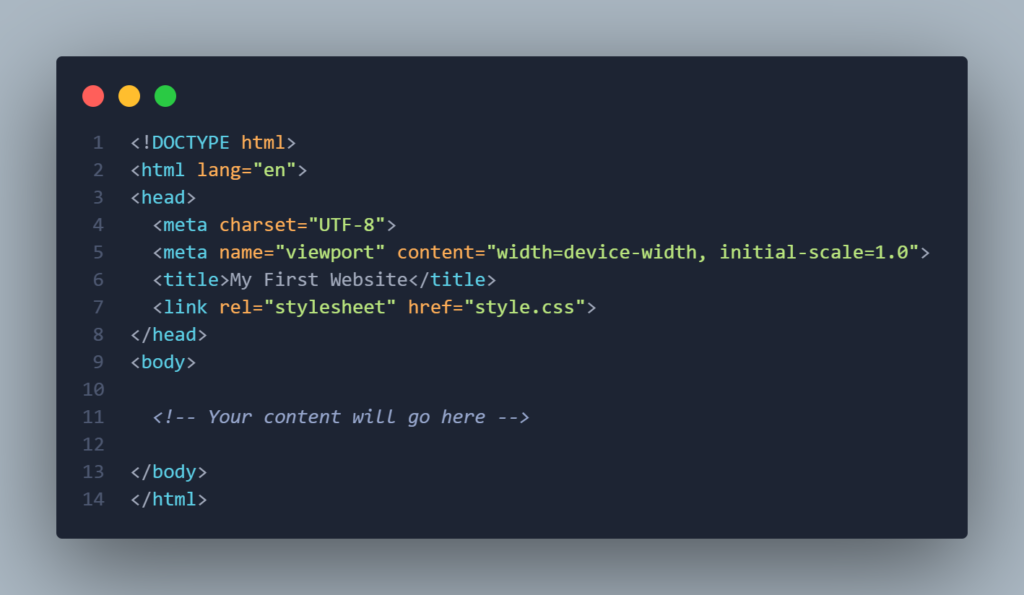
The <link> tag in the head is what connects your HTML file to your CSS file. The viewport meta tag ensures your page scales correctly on mobile devices. Both are essential and should be in every HTML file you create.
Step 3: Add your page content with HTML elements
Replace the comment placeholder inside the <body> tag with the following content block. This introduces the most commonly used HTML elements in a single, coherent page structure.
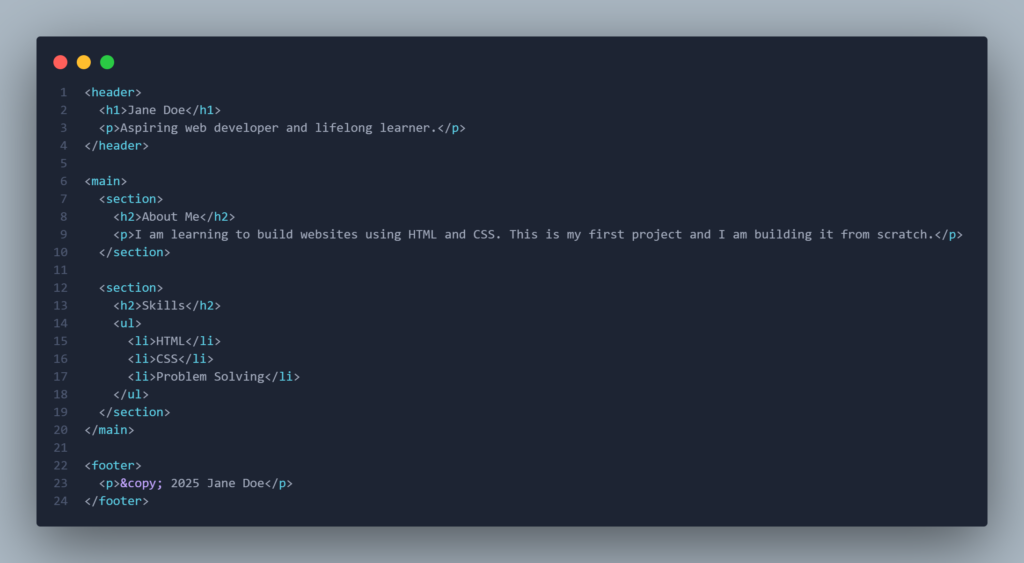
Open index.html in your browser now. You should see a plain, unstyled page with all of your content visible. This is intentional, HTML alone produces no visual design, only structure. That is what the next step addresses.
Step 4: Style the page with CSS
Open style.css and add the following rules. Each block targets a specific HTML element and applies visual properties to it. Read through the comments to understand what each rule does before adding it.
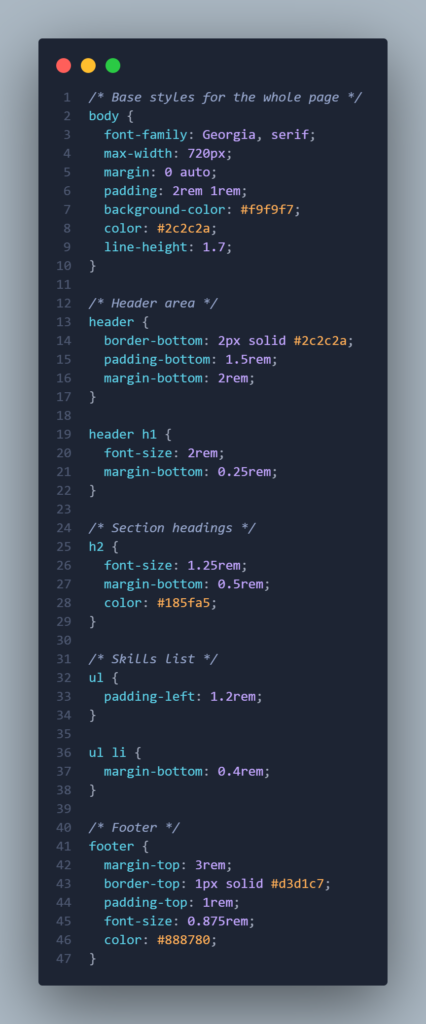
Refresh your browser. The page should now have clear typography, a contained width, a styled header, and a colored section heading. Every visual property you see is coming from the CSS file, none of it touched the HTML content itself. That separation is one of the most important concepts in front-end development.
Step 5: Inspect and refine using browser developer tools
Right-click anywhere on your page in the browser and select “Inspect” (or press F12). The developer tools panel that opens allows you to click on any element and see exactly which CSS rules are applied to it, and to make live edits that appear instantly in the browser without saving the file. Changes made here are temporary and disappear on refresh, but it is the fastest way to experiment with values before committing them to your stylesheet.
Try adjusting the max-width of the body element live in the inspector. Then try changing the color value on the h2 rule. Getting comfortable in the browser inspector is one of the skills that most accelerates front-end learning, it turns every webpage on the internet into a learning resource.
Step 6: Publish your page
Once you are happy with your page locally, the next step is getting it onto the web. GitHub Pages is the most beginner-friendly free hosting option for static HTML and CSS sites, it requires creating a free GitHub account, uploading your files to a repository, and enabling Pages in the repository settings. Your site will be live at a public URL within minutes. As you set this up, it is worth understanding why your site should load over HTTPS and what that means for the security and trustworthiness of your published page.
Netlify and Vercel are also free, beginner-friendly options with drag-and-drop deployment — you upload your project folder and they handle everything else. Either option is suitable for a first project.
What to Learn Next
A working HTML and CSS page is a meaningful starting point, but it is the first step in a longer path. The concepts that follow naturally from this tutorial are worth introducing in the order that builds on what you already understand.
- CSS layout with Flexbox and Grid: The tutorial above uses simple block-level layout. Controlling page layout with CSS Flexbox and Grid is the next skill that unlocks the ability to build multi-column designs, navigation bars, and card grids — the building blocks of almost every modern web page.
- JavaScript basics: HTML and CSS produce static content. JavaScript adds interactivity — responding to clicks, updating content without a page reload, and connecting your page to external data. It is the third language in the front-end stack and the natural progression after CSS layout is comfortable.
- Responsive design: Your page should look correct on screens of all sizes. Learning CSS media queries and the principles of mobile-first design extends what you have already built into something that works for every visitor regardless of device.
- Version control with Git: As your projects grow, tracking changes and rolling back mistakes becomes essential. Learning Git and GitHub early (even at a basic level) builds habits that professional developers rely on every day.
Final Thoughts
What you have built in this tutorial is not a toy. It is a real webpage, structured with semantic HTML, styled with valid CSS, and deployable to a public URL. The same languages, the same tools, and the same separation of structure and style are in use across every website you have ever visited, regardless of how complex those sites appear.
The skill gap between this tutorial and a professional front-end role is real, but it is bridgeable through consistent practice and deliberate project work. Front-end development is one of the most accessible entry points into a tech career for self-taught learners, what matters most to hiring managers in this space is the quality of your portfolio, not the institution where you learned.
Frequently Asked Questions
How long does it take to learn HTML and CSS well enough to build real projects?
Most people with consistent daily practice can build a competent, styled personal webpage within one to two weeks. Moving from basic pages to multi-page sites with responsive layout and polished design typically takes two to three months of deliberate practice. The learning curve is gentle early on and steepens as design complexity increases.
Do I need to pay for web hosting to publish my website?
No. GitHub Pages, Netlify, and Vercel all offer free hosting for static websites built with HTML and CSS. For a first project or a personal portfolio, free hosting is entirely sufficient and requires no payment information to get started.
What is the difference between HTML, CSS, and JavaScript?
HTML defines what is on the page (content and structure), CSS defines how it looks (visual design and layout), and JavaScript defines how it behaves (interactivity and dynamic updates). Together they form the front-end stack. All three run in the browser, and every modern website uses all three in combination.
Is it worth learning HTML and CSS if website builders like WordPress exist?
Yes, for two reasons. First, understanding HTML and CSS makes you significantly more capable even when using a builder, you can customize beyond what templates allow, diagnose layout problems, and make precise edits without relying on support. Second, HTML and CSS literacy is the prerequisite for every other web development skill, including JavaScript, React, and front-end frameworks. Skipping it is skipping the foundation.