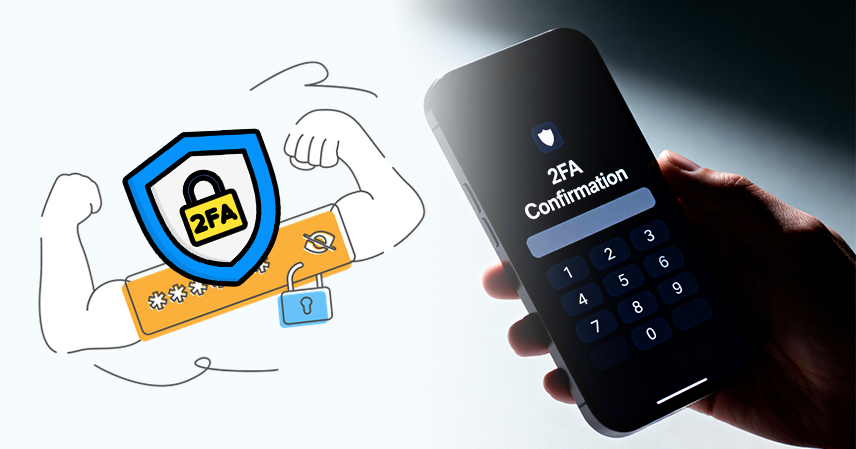
A password used to be enough. It isn’t anymore. Data breaches expose billions of login credentials every year, and once your password is out there, anyone who has it can walk straight into your accounts. Two-factor authentication, usually shortened to 2FA, closes that gap by requiring a second form of proof before anyone can log in, even if they already have your password. If some of these terms still feel unfamiliar, it may help to start with the basics before layering on security concepts like this one.
This guide walks through what 2FA actually does, which accounts need it most, and how to turn it on across the platforms you use every day.
What 2FA Actually Does
Two-factor authentication works by combining two different types of proof: something you know, like a password, and something you have, like your phone or a physical security key. When you log in, the platform checks your password first, then asks for a second code or confirmation before letting you through. This second layer is what stops most account takeovers, because a stolen password alone is no longer enough to get in.
Understanding how the internet actually verifies who you are makes this click faster. Every login is really a conversation between your device and a server, and 2FA simply adds a second checkpoint to that conversation, one that a stranger with your password can’t easily fake.
There are three common forms of the second factor:
- SMS codes are sent as a text message to your phone
- Authenticator apps that generate a new code every 30 seconds
- Security keys or biometric checks, like a physical USB key or your fingerprint
Each one works differently, and the differences matter more than most people assume.
Why SMS Isn’t Your Best Option
SMS-based codes are better than nothing, but they carry a known weakness called SIM swapping, where an attacker convinces your mobile carrier to move your phone number to a new SIM card they control. Once that happens, your “second factor” is sitting in someone else’s hands. Authenticator apps avoid this problem entirely because the codes are generated on your device, not sent over a network that can be intercepted or redirected.
If you have the choice, an authenticator app or a physical security key will always be the stronger option. SMS should be treated as a fallback, not a first choice, especially for accounts tied to your finances or your primary email.
Which Accounts Need 2FA First
Not every account carries the same risk if it’s compromised. Prioritize the accounts that could cause the most damage or give an attacker access to everything else you own.
- Email accounts — your inbox is usually the recovery point for every other account, which makes it the single most important account to protect
- Financial accounts — banking apps, payment platforms, and investment accounts should always have 2FA enabled
- Cloud and file storage — your cloud storage accounts often hold personal documents, photos, and backups, so they deserve the same level of protection as your bank accounts
- Social media accounts — these are common targets for impersonation and scams once compromised
- Work accounts — anything tied to your job, including email, project management tools, and shared drives
If you only have time to secure a handful of accounts this week, start with email and financial accounts. Everything else becomes easier to recover if those two stay locked down.
Step-by-Step: Setting Up 2FA
The exact menu location changes slightly between platforms, but the process follows the same general pattern almost everywhere.
- Go to your account’s security settings: Look for a section labeled “Security,” “Login & Security,” or “Privacy and Security.”
- Find the two-factor authentication option: It may also be labeled “2-Step Verification” or “Multi-Factor Authentication.”
- Choose your method: Select an authenticator app if it’s offered, since it’s the most secure, widely available option.
- Scan the QR code: Open your authenticator app, tap to add a new account, and scan the code shown on screen.
- Enter the confirmation code: The app will generate a six-digit code. Type it into the platform to confirm the setup worked.
- Save your backup codes: Every major platform gives you a set of one-time recovery codes. Save them somewhere safe before you close the setup screen.
Popular authenticator apps include Google Authenticator, Microsoft Authenticator, and Authy. Any of these will work across almost every platform that supports app-based 2FA, so you don’t need a different app for each account.
Backup Codes and Recovery
This is the step most people skip, and it’s the one that causes the most panic later. If you lose your phone or switch devices without transferring your authenticator app, backup codes are the only way to regain access to your account. Losing them is its own kind of data loss, and recovery codes disappear the same way your files can if you never planned for it.
Store backup codes somewhere separate from the device they protect. A password manager’s secure notes feature, a printed copy in a locked drawer, or an encrypted file works better than a screenshot sitting in your phone’s camera roll, since a lost or stolen phone would give someone both the account and the recovery method at once.
Common Setup Mistakes to Avoid
A few habits undercut 2FA even after it’s turned on:
- Using SMS everywhere by default instead of switching to an authenticator app when the option exists
- Skipping backup codes and assuming you’ll always have your phone on hand
- Reusing the same recovery email across every account creates a single point of failure
- Ignoring 2FA on secondary accounts that still hold sensitive information, like an old email you rarely check but never closed
None of these mistakes is complicated to fix. They require a few extra minutes during setup, which is a small price for the protection you get in return.
Final Thoughts
Two-factor authentication is one of the highest-impact security habits you can build in under an hour. It won’t make you invincible, but it removes the easiest path an attacker has into your accounts: a stolen password used alone. Start with your email and financial accounts, work through the rest of your accounts over the next few days, and store your backup codes somewhere you’ll actually remember.
Security habits like this one are a good example of picking up a new skill like this one at a manageable pace. You don’t need to overhaul your entire digital life in one sitting. A few accounts a day get you there just as effectively.