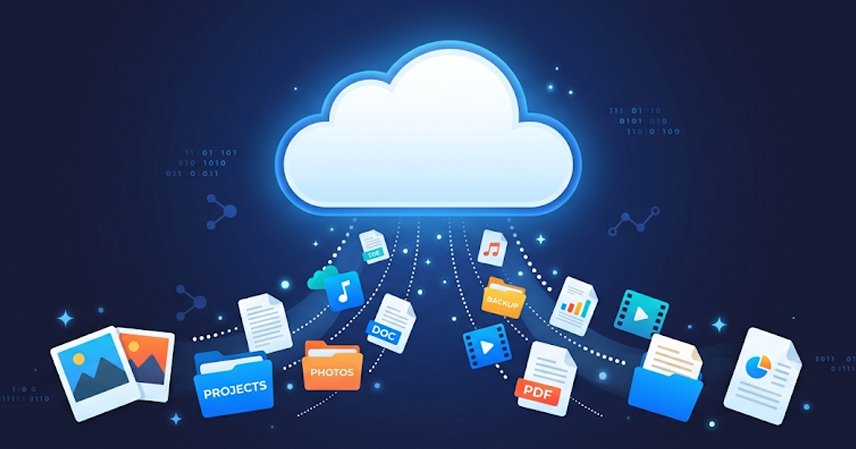
Most people do not think about backups until something goes wrong. A hard drive fails, a laptop gets stolen, or a ransomware attack locks them out of their files. By that point, it is too late. I learnt this the hard way when I lost a huge part of my working files a couple of years back and am still recovering from the effects. Backing up your computer is one of those tasks that takes less than an hour to set up and can save you from losing years of work, photos, and documents.
This guide walks you through exactly how to do it, the right way.
What “Backing Up” Actually Means
A backup is a copy of your data stored somewhere separate from your main device. If your computer is lost, damaged, or infected, you can recover your files from that copy. The important word is separate. Saving a file to a different folder on the same hard drive does not count as a backup.
Before choosing a method, it helps to understand what you are protecting. If you want a quick breakdown of the different file types on your computer and what each one does, the Tech Fundamentals for Beginners guide covers the basics clearly.
The 3-2-1 Backup Rule
The 3-2-1 rule is the standard approach used by IT professionals. It is not complicated:
- 3 copies of your data (1 original + 2 backups)
- 2 different storage types (for example, an external drive and a cloud service)
- 1 copy stored offsite (either in the cloud or physically at a different location)
The reason for the redundancy is straightforward. If your external drive and laptop are both in the same bag that gets stolen, a single backup is not enough. The offsite copy is your safety net.
Step 1: Decide What to Back Up
You do not have to back up everything, but you should back up anything you cannot recreate. Common priorities include:
- Documents, spreadsheets, and PDFs
- Photos and videos
- Email archives and contacts
- Project files (design work, code, writing)
- Browser bookmarks and passwords (these can often be synced separately through your browser account)
Most operating systems can be reinstalled if needed. Your personal files cannot. Focus your backup plan on data you created, not software you can re-download.
Step 2: Choose Your Backup Method
There are three main approaches, and most people benefit from using at least two of them.
External Hard Drive
An external hard drive connects to your computer via USB and stores a copy of your files locally. It is fast, works without an internet connection, and gives you full control over your data. A 1TB or 2TB drive is enough for most home users and costs between $50 and $80.
The downside is that it only protects you if the drive is kept somewhere separate from your computer. Leaving it plugged in permanently limits its usefulness in the event of theft or fire.
Cloud Backup
Cloud backup automatically sends copies of your files to remote servers over the internet. Services like Backblaze, iDrive, and Microsoft OneDrive handle this continuously in the background. If your computer is destroyed, you can restore your files from any device with a login. To understand how cloud storage works at a basic level, the article on Cloud Storage for Beginners explains the concept without technical jargon.
The trade-off with cloud backup is upload speed. Initial backups of large libraries can take days, depending on your internet connection. After the first full backup, only new changes are uploaded, so it becomes less noticeable.
Built-in OS Tools
Both Windows and Mac have free backup tools already installed. These are a practical starting point if you want to begin backing up today without spending anything.
Step 3: Set Up a Backup on Windows
Windows includes a tool called File History, which automatically backs up files in your Documents, Pictures, Music, Videos, and Desktop folders to an external drive.
To set it up:
- Connect your external hard drive.
- Open Settings and navigate to Update & Security > Backup.
- Click Add a drive and select your external drive.
- Toggle Automatically back up my files to on.
- Click More options to set how often backups run and how long versions are kept.
For a full system image (a complete snapshot of your operating system and all files), use Backup and Restore (Windows 7), which is still available in Windows 10 and 11 under the Control Panel.
Step 4: Set Up a Backup on Mac
Mac users have Time Machine, which works similarly to File History but is slightly easier to configure.
To set it up:
- Connect an external drive.
- If macOS does not prompt you automatically, go to System Settings > General > Time Machine.
- Click Add Backup Disk and select your drive.
- Time Machine will run hourly backups, daily backups for the past month, and weekly backups for previous months, automatically.
Time Machine keeps multiple versions of files, so you can restore a document to how it looked three weeks ago, not just the most recent version. This is useful if you accidentally overwrite something important.
Step 5: Add a Cloud Backup Layer
After setting up a local backup, add at least one cloud option. This covers the off-site requirement in the 3-2-1 rule.
Options worth considering:
- OneDrive (built into Windows, 5GB free, more with a Microsoft 365 subscription)
- iCloud Drive (built into Mac, 5GB free)
- Google Drive (15GB free, works on both Windows and Mac)
For most beginners, starting with whatever cloud storage comes built into your operating system is fine. Cloud tools also connect well with broader productivity workflows. If you already use cloud-based applications daily, the article on Cloud Computing for Beginners gives useful context on how these services fit together.
Step 6: Test Your Backup
Setting up a backup is only useful if you know it actually works. Most people skip this step and only discover a problem when they need to restore something.
Testing takes a few minutes:
- Open your backup software and confirm the last backup ran successfully.
- Navigate to a specific file in the backup (a photo or document you know exists).
- Restore it to a different folder and confirm it opens correctly.
For cloud backups, log in to the service on a different device or browser and verify you can see and download your files. Schedule a reminder to check your backup status every month. It takes less time than any other maintenance task on your computer.
How Often Should You Back Up?
For most people, a reasonable schedule is:
- Daily or continuous for cloud backup (set it and forget it)
- Weekly for external drive backups of important work files
- Monthly for a full system image if you use one
If you work on files that change frequently (writing, coding, design), more frequent backups reduce how much you could lose in a worst case. Losing one day of work is far better than losing three weeks.
Common Backup Mistakes to Avoid
Even people who back up regularly make avoidable errors:
- Keeping the external drive plugged in at all times (reduces protection against theft or power surges)
- Only backing up one type (local only or cloud only, not both)
- Never testing whether the backup can actually be restored
- Forgetting to back up a new device after buying it and setting it up
The setup effort is front-loaded. Once your system is running, it maintains itself.
Connecting This to Broader Security Habits
Backup is one part of a wider approach to protecting your data. It addresses the recovery side of things, what happens after something goes wrong. For the prevention side, understanding how computers handle data and how software works will help you recognize risks before they cause problems. The article on Tech Fundamentals for Beginners is a practical starting point if you want to build that foundation.
Final Thoughts
Backing up your computer correctly means applying the 3-2-1 rule: multiple copies, multiple storage types, one stored offsite. The steps are:
- Identify what files matter most to you.
- Set up a local backup using an external drive and your OS backup tool (File History on Windows, Time Machine on Mac).
- Add a cloud backup layer using a built-in or third-party service.
- Test the backup to confirm it works.
- Set a recurring reminder to check that backups are still running.
It is one of the few computer tasks where the setup pays off immediately, even if you never need to use it.